Protected videos are delivered in encrypted segments with license checks, so a direct save may leave you with data that cannot play. Open the page in the VidGetter desktop client: download media that is available and record protected playback. The result is a standard MP4 you can watch offline.
Protected video looks just like any other video when the network is fast. The problem appears when you want to save a copy for offline viewing: the file from the right-click menu won't open, or the page's download button is missing or provides only a restricted copy.
That's because this kind of content is delivered as encrypted segments. The player must receive authorization before it can decrypt them. To turn it into a local file you can play again, use the VidGetter desktop client: download media that can be accessed directly, and record protected playback. Either way, the result is a standard MP4.
Where does protection get in the way?
A protected video usually isn't one complete file. It's split into many small segments and delivered as needed over HLS or DASH, with the data in those segments encrypted. Each time you play the video, the player requests a license from the service, gets a key, decrypts and decodes the video locally, and sends it to the screen.
This has three consequences:
- Segment links expire. A link you find may stop working after a while, leaving only a short clip when saved.
- Licenses are tied to a device and account. The same data may not decrypt if you switch devices or environments.
- Quality can change by resolution. The player may switch streams while playing, so the source itself can change over time.
That is why saving the data and double-clicking it does not work for encrypted content. Recording avoids this issue: it captures the picture and sound that the player has already decrypted and is currently displaying, so the result is a regular video file.
Two ways to use VidGetter: download when possible, record when protected
One client handles both cases, so you don't need a different tool for every site.
| Method | Suitable for | Result |
|---|---|---|
| Download | Publicly available MP4, HLS, DASH, audio, and subtitles | A version provided by the source; resolution, audio tracks, and subtitles can be selected and kept separately |
| Record | Protected content, live streams, or content that must play all the way through to save | A standard MP4 file that can be played offline |
The client supports Windows 10/11 and macOS and doesn't require a browser extension. Open a page in its built-in browser or paste in the public page link to see what it detects.
Three steps: install, identify, save
Step 1: Install the client
Get the installer from the VidGetter download page, install it, and open the client. If you already have it, just launch it; everything happens on the desktop.
Step 2: Let the client find the video
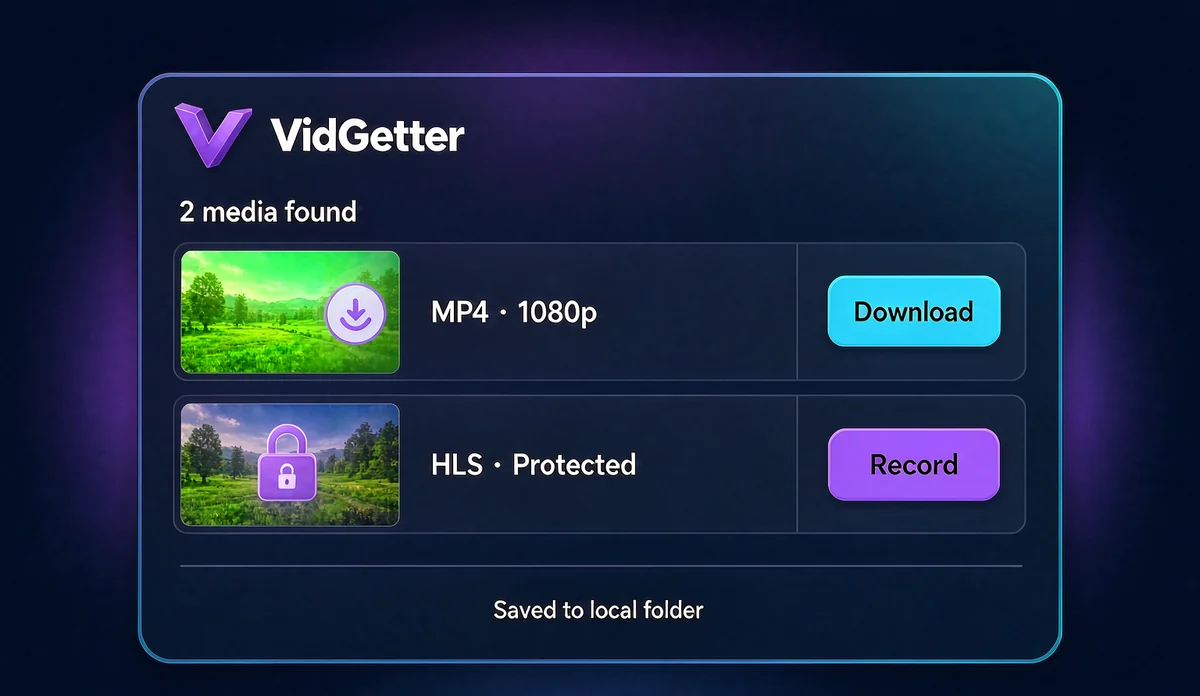
Open the target page in the built-in browser. If the site requires an account, sign in within the client. You can also copy the page address and paste it into the address bar. After identification, the client lists available media and shows each version's resolution, format, audio track, subtitles, duration, and estimated file size.
The list will show which option fits: download a complete version when one is available; use recording for an encrypted stream or live video. Before recording, select the quality level you plan to keep because the recording follows the output actually played.
Step 3: Record or download, then save
Record: Start recording on the playback page, play from the beginning, and stop once playback is complete. Keep the window visible and don't minimize it. Recording takes as long as playback.
Download: Choose a version and save location from the list, then start the download. You can add multiple episodes or a whole playlist to the queue and check their progress together.
Both methods can resume after an interruption, so a network hiccup doesn't mean starting over.
Set these options before recording
| What to check | What to do |
|---|---|
| Resolution and bitrate | Set the player to the quality level you want first; the recording follows that output |
| Audio track | Choose the right language before starting, especially for multilingual content |
| Subtitles | Turn subtitles on before recording if they should appear in the picture; if you need a separate subtitle file, prefer downloading and save the subtitle separately |
| Stability | Keep the network steady, close demanding background apps, and don't cover the playback window |
| Disk space | File size depends on the playback bitrate. Check available space and connect power before recording a long video |
Organize the files after saving
The client includes a local media library and download history. Use them to find files by source, date, format, and save location. As your collection grows, organize it by project: store the video file, source link, save date, and authorization together in one folder. This makes later searches and collaboration easier.
When collecting a batch, line up the files in the queue and check their progress in one place. Renaming and organizing everything after the batch finishes is quicker than sorting while each download is running.
How this differs from offline copies in official apps
Some subscription services offer offline copies inside their own apps. Those copies play only in that app and may expire or be limited by the number of devices that can store them offline. A local MP4 is more suitable when you need cross-device playback, long-term storage as a source file, or a copy of a live stream.
Each service makes its own choices about which titles have an offline option. Before you start, check the help page for the specific program, such as Netflix's download help and Disney+'s offline viewing help. Whichever option you use, only record or save content you own or have permission to keep.
Frequently asked questions
How large will a recording be?
File size depends directly on the bitrate during playback. The same video recorded at a higher quality level will take up noticeably more space. Check the client's estimate first and leave enough room for a long video.
Can I do something else while recording?
Recording follows playback, so the playback window has to remain visible. For a long recording session, use another device for other tasks and let this computer handle playback and recording.
Can I open the recorded file on a phone or in another player?
The output is a standard MP4, which common players and editing apps can open. You can also convert it to another container format.
Can I save a live stream?
Yes. A live stream is a typical protected stream; recording it from beginning to end creates a full replay. This is also a common way to keep an important presentation.
Should I record a regular video if a download button is available?
No. Direct download is better when available: it can preserve the source's original resolution, audio tracks, and subtitles without capturing and re-encoding the picture.
Get started
You need just one tool: install the client from the VidGetter download page, open the page or paste its link, download media that is available, and record encrypted playback. When you're travelling or offline, the files you need will already be on your computer.