
How to Turn Off OnlyFans Auto-Renew: Check Each Creator and the Next Statement
To stop future OnlyFans charges, select the right creator and subscription, save the cancellation confirmation, and check the next statement on the expected billing date.
Practical guides for downloading, organizing, and using online video responsibly.
To stop future OnlyFans charges, select the right creator and subscription, save the cancellation confirmation, and check the next statement on the expected billing date.
If you need a JustForFans video as a local file, ask the rights holder about the authorized version and permitted uses. Follow the agreed delivery method, check the file, and organize it with VidGetter.

Record the first-period price separately from the renewal price and list one-time purchases on their own. Review what you actually watched this cycle to decide what to keep next month and make costs easier to predict.

Online recommendations usually reflect someone else's device. Your experience depends on whether your login persists, playback is smooth, and privacy settings suit shared devices. Test browsers on the same computer, network, and account to find out what works for you.
Start with the message on the page. A lock or subscription notice points to an account or billing issue; a loading error points to the network or browser; a black screen or audio-only playback points to the player or device. Classify the symptom before troubleshooting, and save a local copy while the video plays normally.
After publishing, the detail most likely to get lost isn't the file itself but which version you uploaded. Organize version history first, then set up folders and retrieve any missing copy. This workflow is for content you created and published yourself.
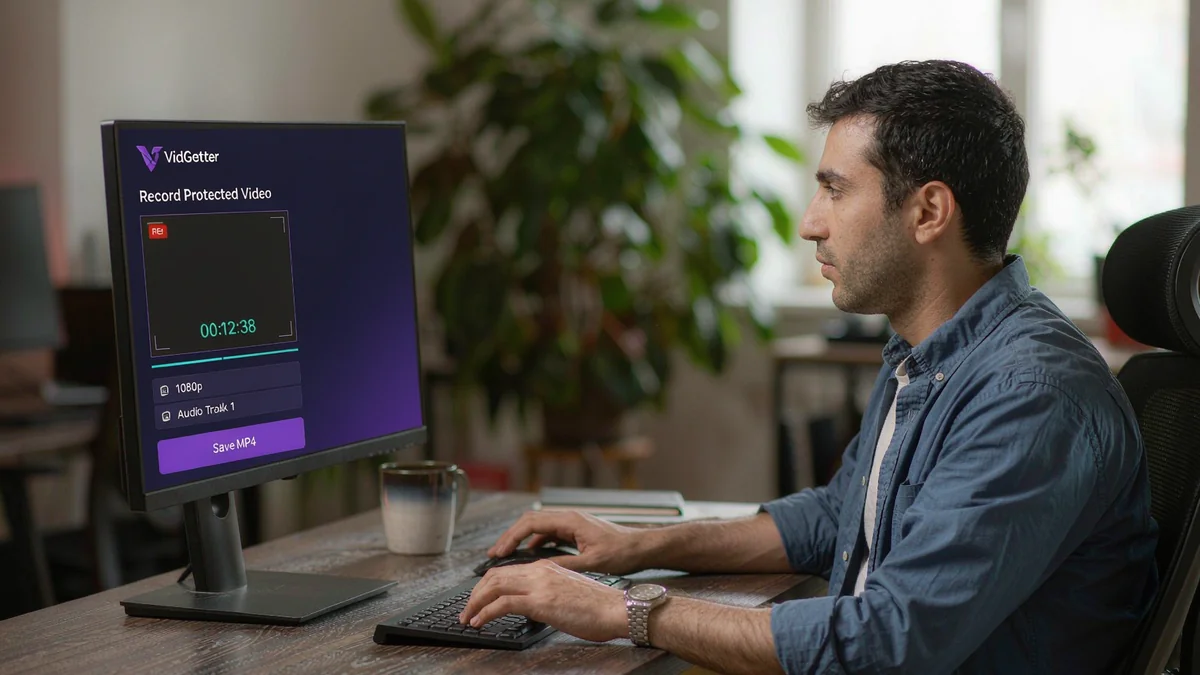
Protected videos are delivered in encrypted segments with license checks, so a direct save may leave you with data that cannot play. Open the page in the VidGetter desktop client: download media that is available and record protected playback. The result is a standard MP4 you can watch offline.
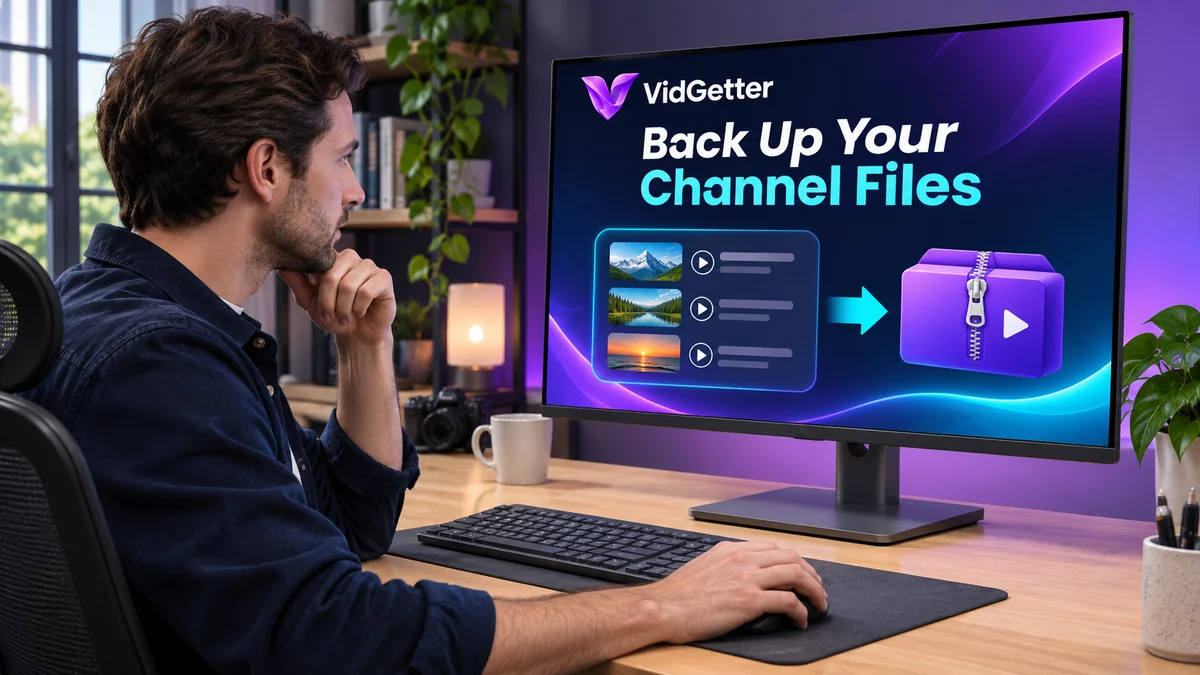
Use VidGetter to save videos from your own YouTube channel to a computer, from installing the client to organizing a batch archive. Identify the available media, compare picture quality and audio, build a download queue, and check the files one by one.
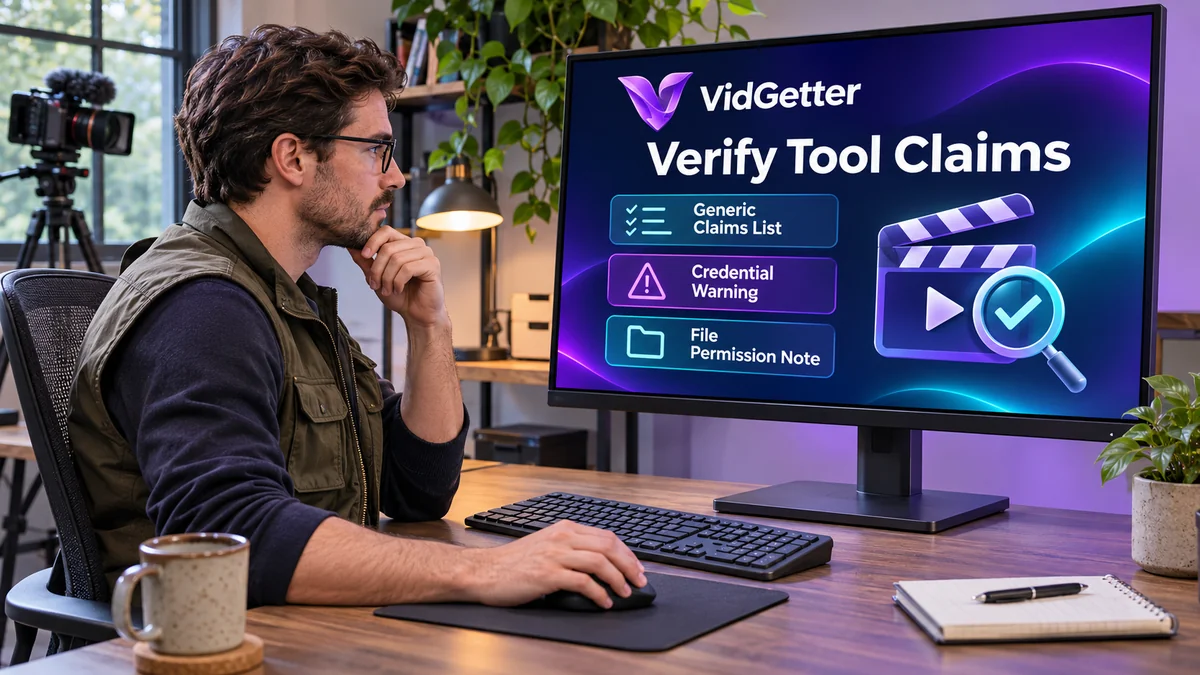
Search results for download tools include online extractors, browser extensions, and desktop clients. First decide whether you need to watch offline or build an archive, then compare the source, requested permissions, version choices, and verifiable behavior. Finally, test with a small sample.
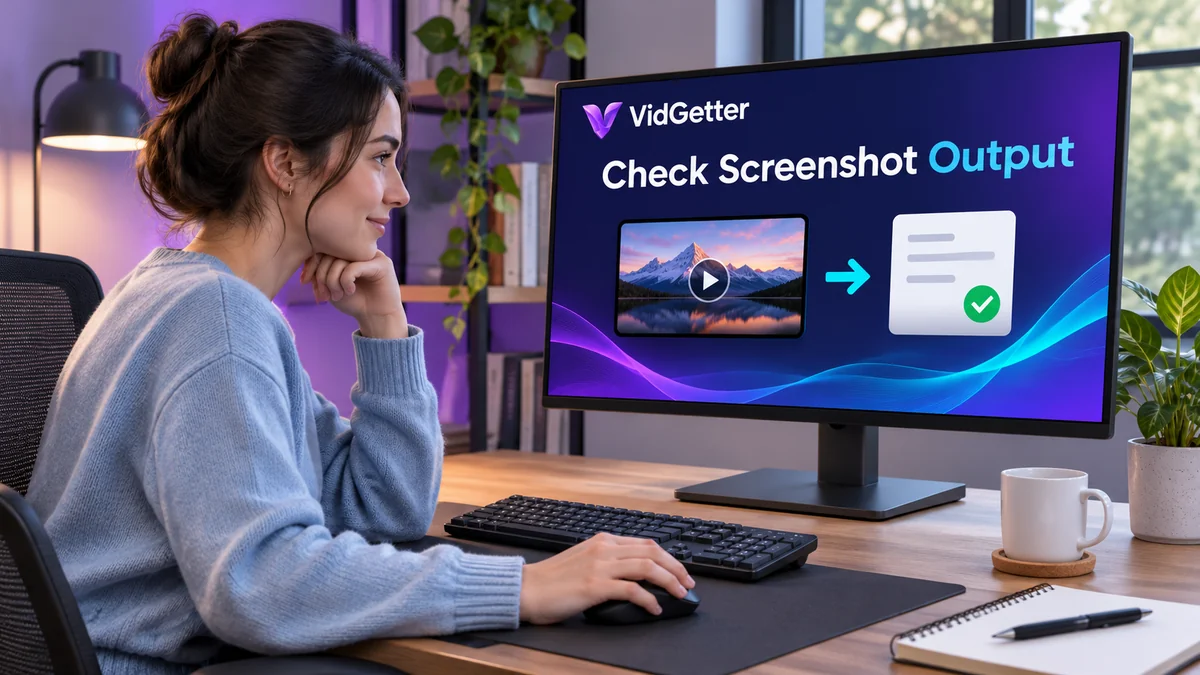
A black screenshot usually doesn't mean your computer is broken. The cause may be protected content, hardware acceleration, or a privacy mask. First decide why you need the screenshot: written details can resolve billing issues, while recording is better for preserving your own material.
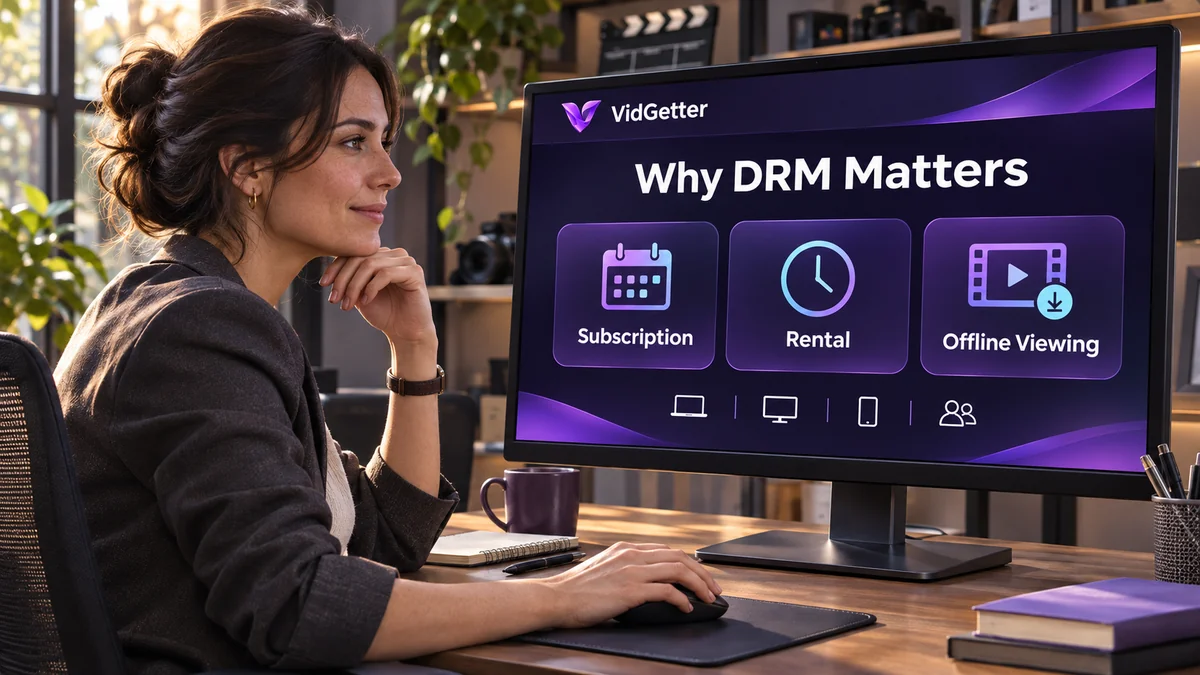
DRM connects content protection with playback authorization, supporting video services for subscriptions, rentals, and offline viewing. Learn what it does and what to check before watching or organizing media.

Use VidGetter to organize Instagram Reels you are allowed to save. Check each video, aspect ratio, and sound, then create local folders by creator, topic, and date for easy review.