A black screenshot usually doesn't mean your computer is broken. The cause may be protected content, hardware acceleration, or a privacy mask. First decide why you need the screenshot: written details can resolve billing issues, while recording is better for preserving your own material.
You press the screenshot shortcut and get a solid black image. This is common with protected content, and most of the time it has nothing to do with your computer, graphics card, or operating system. First decide why you need the screenshot: if you need evidence, text can be more useful than an image; if you need to preserve your own work, recording is a better fit.
Decide what you need the screenshot for
The same black-screen problem calls for different solutions depending on your goal:
| Why you need a screenshot | Information you actually need | Suggested approach |
|---|---|---|
| A payment dispute or billing check | Order number, amount, date, status | Written record plus copied page text |
| Reporting an error to the platform | Exact error text, time, steps taken | Record the message and reproduction steps |
| Preserving your own material | The picture itself | Record with a client or save the file |
First answer: “What am I trying to prove with this screenshot?” The next choice will be much clearer. Many screenshot requests fall into the first two categories and can be handled with text.
Check the screenshot tool with a page you made
Before blaming the content, make sure the screenshot tool works. Open an ordinary web page you created yourself with an image and a line of text, then capture it using the same shortcut. If that screenshot looks normal, the tool and system are working; the issue is with the content being captured.
This test helps isolate the cause. Skipping it and reinstalling the operating system or switching screenshot apps is often wasted effort.
Three common reasons an image appears black
Once you've ruled out the screenshot tool, the cause is usually one of these three things:
- Protected playback. Some videos use a system-level protected path when rendered. A standard screenshot interface can't capture the image and returns a black frame. This is by design on the content side, not a device fault.
- Hardware acceleration and decoding. With certain decoding paths, some graphics drivers can cause the screenshot interface to receive an empty frame. Toggling hardware acceleration in the browser or changing the graphics preference in system settings may make a difference.
- A privacy mask. The operating system or security software may apply a content mask to a sensitive window, blacking out the whole area in screenshots. This often happens on shared devices, remote desktops, and screen-recording software.
A simple test is to try different capture methods: the built-in system tool, a browser screenshot, and a screenshot app. See Microsoft's support page for the Windows Snipping Tool. If all three produce a black image, the first cause is likely. If only one does, check that tool or its driver.
Use written evidence instead of an image
If you need a screenshot to resolve an order issue, the image itself may not be necessary. These details together can help identify the problem more effectively than a picture:
- Order number and payment time;
- Amount, currency, and subscription period shown on the page;
- Status text, such as processing, complete, or failed;
- The complete error message, copied directly rather than retyped.
Putting these details in an email or a table is easier for support to review than a blurry screenshot. When another person's content or a private image is involved, written evidence also avoids unnecessary sharing.
Record your own material when you need to preserve it
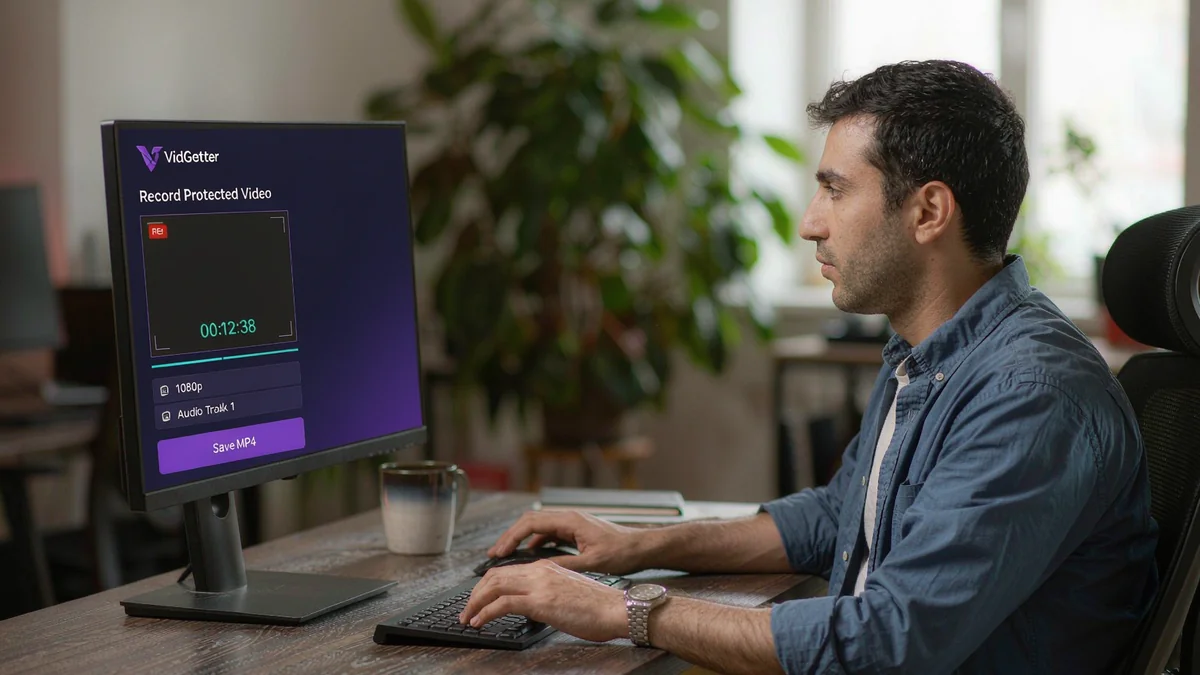
If the black screen is from something you published or have permission to keep, your goal is really to save the picture. There's no need to fight the screenshot interface. VidGetter's recording feature can capture live streams and protected playback directly. A recording preserves the playback more completely than a series of screenshots, without the risk of one frame being black.
The steps are simple: install the client from the VidGetter download page, open the page, and complete any sign-in it requires. Confirm that both picture and sound work, then start recording. Afterwards, check the duration and audio track in your local folder. If you need to keep several clips, the client supports a batch queue; recording a batch and checking it together is easier than reviewing each clip one at a time.
If you only want to watch offline, saving the file directly is better than recording it. Recording re-encodes the picture and sound, so quality may differ from the original file.
Frequently asked questions
Does a black screenshot mean my graphics card is broken?
Usually not. Test the screenshot tool on a regular page you made yourself. If it works there, the problem is with the captured content, such as protected playback or a privacy mask.
Would switching browsers help?
Browsers can affect decoding and hardware acceleration, so it's worth trying. Protected playback may still produce a black frame in most browsers; in that case, record it or save the file directly.
Is it normal for a recording to be smaller than the original?
Yes. A recording is re-encoded. If you need the original quality, save a version provided by the source instead.
Why is the screenshot black on my phone too?
The same behavior can happen on different operating systems. Protected content on mobile devices can also block screenshots. The approach is the same: use text to keep evidence and recording to preserve your own material.
Choose a simpler option
A black screenshot means the capture method isn't working; it doesn't necessarily mean something is broken. For evidence, use text and order details. To preserve your own material, record it with a client or save the file directly. Install the VidGetter client now, and if you see another black frame, you'll already have an alternative.