Start with the message on the page. A lock or subscription notice points to an account or billing issue; a loading error points to the network or browser; a black screen or audio-only playback points to the player or device. Classify the symptom before troubleshooting, and save a local copy while the video plays normally.
When a video won't open, most people first try refreshing, switching browsers, or clearing the cache. Those steps sometimes work, but often amount to guesswork. “Won't play” can describe three very different problems that happen to look alike. Read the message on the page first and identify the type of problem; then troubleshoot in order.
If the video eventually plays normally, the easiest option is to keep a local copy so you don't have to repeat the troubleshooting process next time.
Read the message before you troubleshoot
The text on the page is your clearest clue. Use it to sort the issue into one of three categories:
| What you see | Type of issue | Main things to check |
|---|---|---|
| An explicit notice (locked, subscription required, account issue) | Access and billing | Account status, subscription, payment record |
| A spinner with no video, an error code, or a load failure | Loading and network | Connection quality, DNS, cache, extensions |
| A black screen, audio only, or visual artifacts | Player and device | Decode path, hardware acceleration, audio track |
These categories call for different fixes. A common waste of time is repeatedly clearing the browser cache when the subscription has expired.
Type 1: An explicit lock notice
If the page says the content is unavailable, the problem is not technical. Troubleshooting the network or browser won't help.
Check these three things in order: are you signed in to the account used for the purchase; is the subscription still active; and is the payment marked as “processing” or “failed”? Access may take a little while to update after a payment. Waiting a few minutes and refreshing is usually more useful than signing in repeatedly.
If all three check out but the page still shows a lock, save a screenshot of the exact notice and the time, then contact the platform's support team. Written evidence is easier to act on than a verbal description.
Type 2: A web page loading error
Here, the page itself is having trouble; the video file has not even come into play yet. Check from the simplest cause outward:
- Connection quality. Use a speed test to check bandwidth and packet loss. While a video is stuck loading, packet loss can matter more than bandwidth.
- Extensions. Turn off ad blockers and script-management extensions, then try again. These tools can block requests for video segments.
- Cache and cookies. Clear the site's data for the current site (see Chrome's instructions for clearing cache and cookies), then sign in again.
- DNS and network route. Try another DNS service or network. A quick test with a phone hotspot can reveal a routing issue.
- Browser version. Try an up-to-date browser to rule out a version-specific problem.
Change one thing at a time and retry. If you change five settings at once, you won't know which one helped.
Type 3: A black screen or audio without video
If the picture is missing but the sound plays, the media stream has reached your device. The problem is in the rendering stage.
Two common causes are hardware acceleration and audio-track selection. Try turning off hardware acceleration in the browser settings, or set the browser to use integrated graphics in your system's graphics settings. For audio, check the track options in the player: some videos with multiple tracks may default to one without dialogue.
If the screen is black, there is no sound at all, and the progress bar does not move, the issue is more likely a loading problem. Go back to Type 2. Checking whether you can hear audio is the quickest way to distinguish the two.
Keep a short record of what happened
As you troubleshoot, note four things: when the error occurred, the exact message on the page, what you did, and what you changed. This record helps you reproduce the issue and gives the platform useful information if you report it.
It doesn't need to be a long write-up. Four lines are enough. “It just won't open” is the hardest kind of report to handle: it has no time, message, or steps to follow.
If it plays, save a local copy
Troubleshooting can take ten minutes or more, and playback access can change over time. If the content is yours or you have permission to keep it, and the source allows saving, the easiest option is to save a local copy while it still plays.
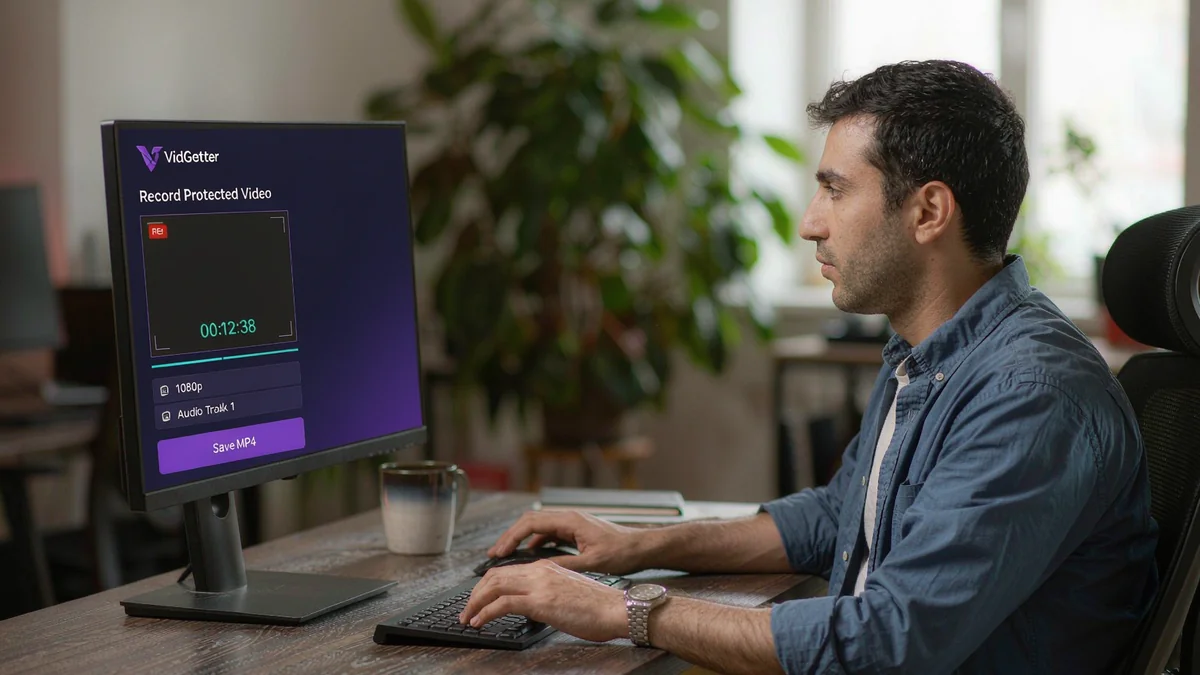
The steps are straightforward: install the client from the VidGetter download page, open the video's page in its built-in browser, and sign in if the page requires it. Check the detected media list against the title and duration. Before downloading, compare the available resolutions, audio tracks, and estimated file sizes, then add your selection to the queue. Once the file is on your computer, offline viewing, editing, and transferring it between devices no longer depend on that login staying active.
For multiple videos, the queue supports pausing and resuming. The local media library records the source, date, format, and save location, so it's easy to find “the version I saved last week.”
Frequently asked questions
It worked after a few refreshes. Should I keep troubleshooting?
You can ignore a one-off issue. If the same video keeps failing, the cause is probably still there. Classify it from the page's message and check the relevant cause once.
It still won't play in another browser. What should I check?
If three browsers behave the same way, the browser is probably not the issue. Use the page's message to classify the problem again, and pay particular attention to an access or subscription issue.
It plays on my phone but not my computer. Why?
The likely cause is the computer's decoding path or an interfering extension. First try disabling extensions on the computer, then try turning off hardware acceleration. These two steps cover many common cases.
The saved file looks less clear than the online video. Is that normal?
That depends on the version provided by the source. VidGetter shows the available resolutions and audio tracks before you save; choose a higher-resolution option if you need it.
Classify the issue and cut the guesswork
“Won't play” describes a symptom, not its cause. A lock, a loading failure, and a rendering problem each need a different troubleshooting path. Reading the message before taking action is faster than refreshing at random. When the video plays normally, use the VidGetter client to save a local copy. If the same problem comes back, you'll still have a version you can open.