Let creators explain why they chose a platform; don’t infer exclusivity or anything unusual from a single link. Check official announcements, current updates, and access permissions for specific media, and confirm the items you want before subscribing. Save videos you’re authorized to access with VidGetter and build an index for easy playback.
Not finding an account with the same name on other platforms doesn’t mean the creator is necessarily doing anything unusual, nor does it prove that all their content is exclusive. What’s more useful is to verify the official link, content schedule, and specific access permissions so you can decide whether the creator offers what you’re actually looking for.
Don’t speculate about why a creator chose a platform
Check the creator’s confirmed profile, pinned posts, and announcements to see whether they explain that they’re consolidating updates, moving platforms, or taking a break. If there’s no explanation, leave the reason unknown rather than treating audience reach, earnings, or operational convenience as established facts.
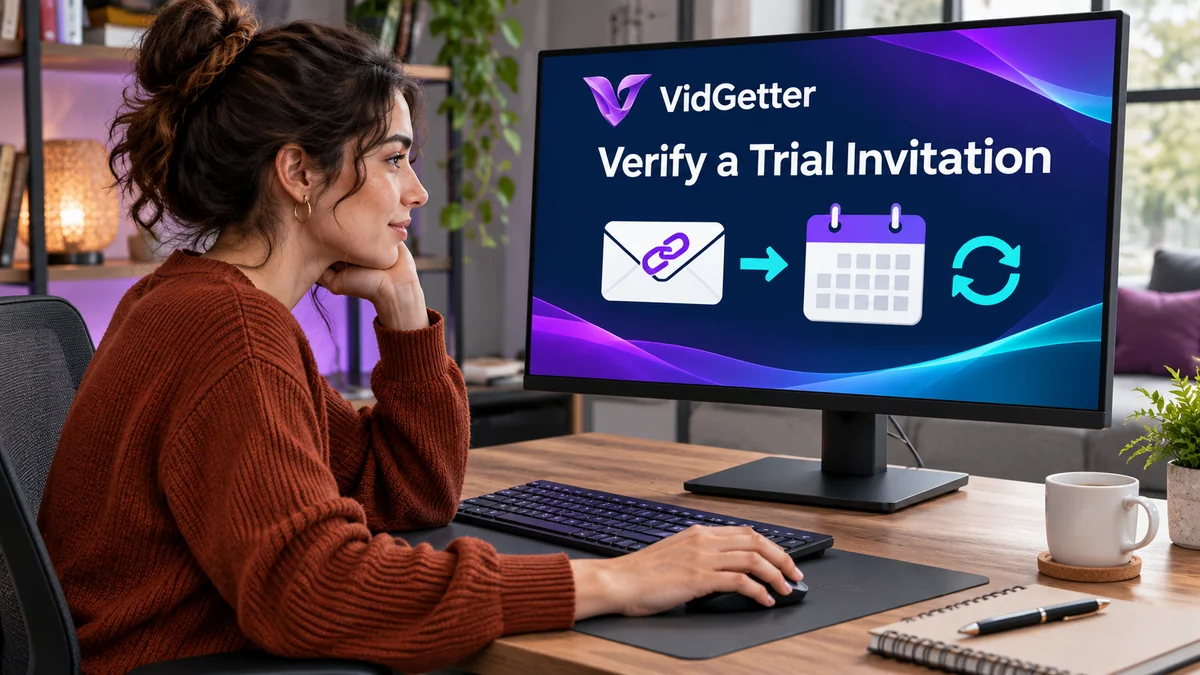
The dates of recent posts can help you gauge the creator’s current activity, but they don’t guarantee a future posting schedule. Long-term activity or a verification badge alone can’t confirm someone’s identity either. Verify the link through a channel the creator has publicly shared themselves.
A single post can have different access permissions
The Fansly posting guide explains how media, previews, and access permissions work, and notes that a single post can include multiple media items with different access settings—for example, free and paid content.
So being able to read a post or watch a preview doesn’t mean all the media in it is available. And seeing locked content doesn’t, by itself, tell you how a specific item can be unlocked based on the creator’s overall subscription plan. Check the current prompt and description for that item.
Check against what you’re looking for
List the series, tutorials, or events you want to see, then confirm which plan includes them, whether they cost extra, and which version is offered. If content titles are similar, check what each one covers. For livestreams, check entry and replay arrangements separately.
Posting frequency and total content are both useful points of reference, but what matters is whether you can access the content you want. If the creator explicitly announces a pause, consider your own schedule and what they say about future plans; don’t treat a single change as a long-term pattern.
Don’t rush to follow or pay for similar accounts
Finding the same profile picture on another platform can be a reason to wait and verify, but it doesn’t automatically make that account the creator’s new home. If there’s no officially shared link, don’t investigate private information to connect accounts to an identity.
If the creator later announces a move, check the date, exact link, and what will happen to older content. A new link doesn’t necessarily mean the old subscription has ended, so assess each one separately.
Keep authorized reference videos with VidGetter
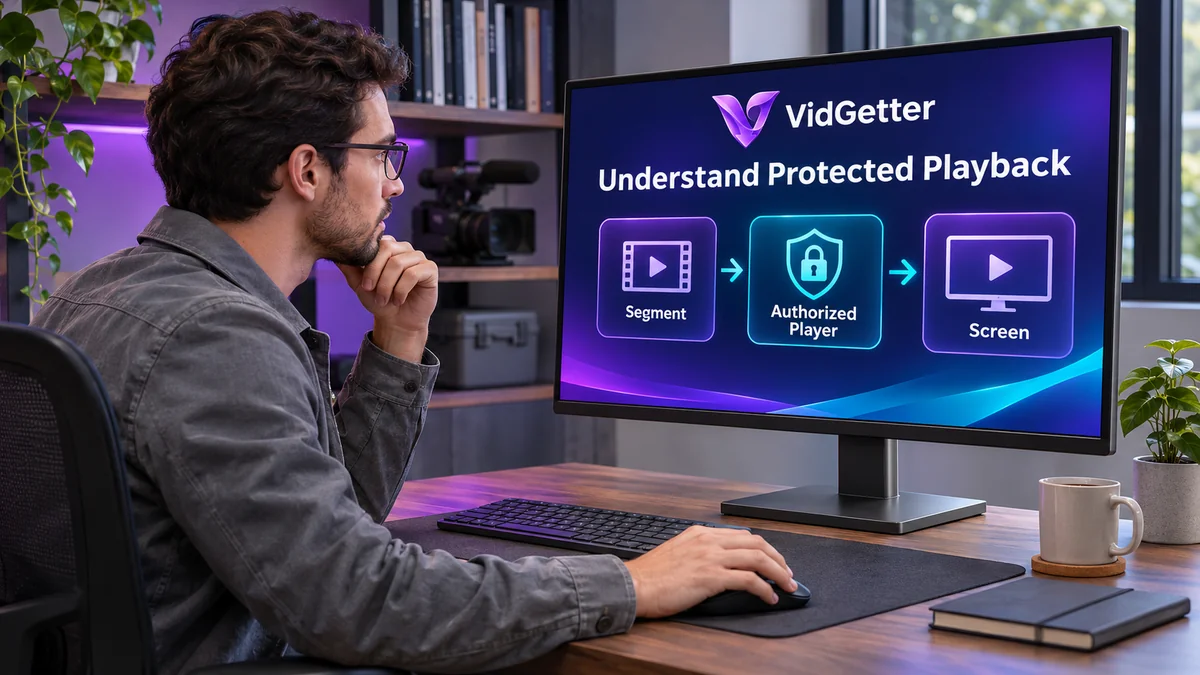
For videos you own or are explicitly authorized to save, you can download VidGetter, open the source page, and play the video. Use the “Media” panel to check the item and available versions, then download it in a format suitable for later viewing.
When it’s done, play it from “Downloads” and open the folder. Record the creator, original post, date, and usage notes. For authorized web livestreams, you can start REC in advance and press STOP to finish; check a sample clip before saving the final segment.
For example, archive a how-to video from a series alongside notes with timestamps so you can go straight to the key steps later. Check the official link for new content, and use your local index to find saved files—there’s no need to keep guessing where the creator might be posting now.